Supervisor Tools
Supervisor tools: see the floor, then change the call
A live agent grid with time in every state, listen, whisper and barge on any call in progress, a supervisor request queue an agent can raise from the desktop, coaching rules, and a wallboard that shows audio quality instead of leaving it to argument.
14-day free trial · free AI credit to try the AI voice agent · no card needed
Quick answer
What you get
Everything in one workspace
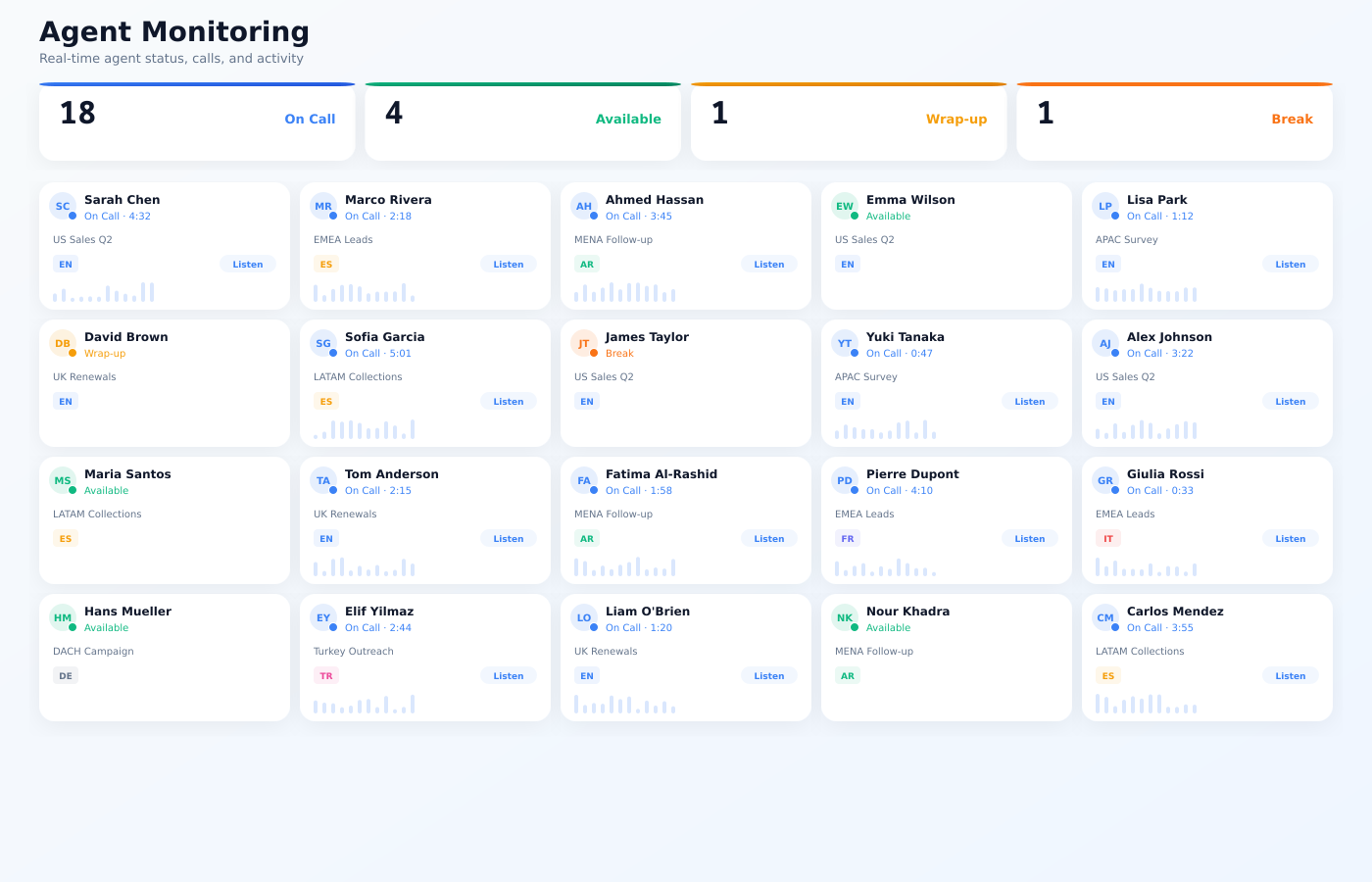
Live agent grid
Every agent as a card: who they are, what state they are in, how long they have been in it, and the campaign or queue they are on. The floor in one screen.
Listen
Join a live call and hear it without either party hearing you. The quiet first rung of the ladder, and the one supervisors use most.
Whisper
Speak to the agent on a live call while the customer hears nothing. Coach the objection while it is still happening rather than in next week's review.
Barge
Join the call as a third voice when the agent needs rescuing and the customer needs an answer now.
Force logout
Log an agent out of the desktop from the supervisor view. For the seat someone left ready at the end of their shift, and for the account that should not be live.
Screen capture view
See the agent's screen, not only their call state. Screen capture is behind a consent toggle the agent can see, so supervision is a setting rather than a rumour.
Supervisor request queue
When an agent presses the supervisor button on a live call, the request lands in a queue instead of a raised hand nobody notices.
Agent activity timers
How long in ready, in wrap-up, on break, on a call. Time in state is the number that tells you whether the floor is working or waiting.
Coaching rules
Rules that raise a supervisor's attention against agent activity, so a problem finds the supervisor rather than waiting to be discovered.
Wallboard with a MOS card
The floor screen, with a MOS card for live audio quality. When agents say the line is bad, the wallboard says whether they are right.
Disposition exports
Export the dispositions behind the numbers, so a client or a QA lead can check the outcomes rather than take the dashboard's word for it.
The ladder
Listen, whisper, barge, in that order
Most calls that go wrong do not need a supervisor to take over. They need someone to hear the objection and tell the agent one sentence. So monitoring is a ladder rather than a switch.
Listen is silent to both sides. Whisper reaches the agent only, and the customer hears nothing. Barge puts the supervisor on the call as a third voice. Force logout ends a session outright when that is what is needed.
- Listen: neither the agent nor the customer hears the supervisor
- Whisper: the agent hears the supervisor, the customer does not
- Barge: the supervisor joins the live call as a third party
- Force logout for the seat that should not be live
The floor screen
Queue depth and audio quality on the same wall
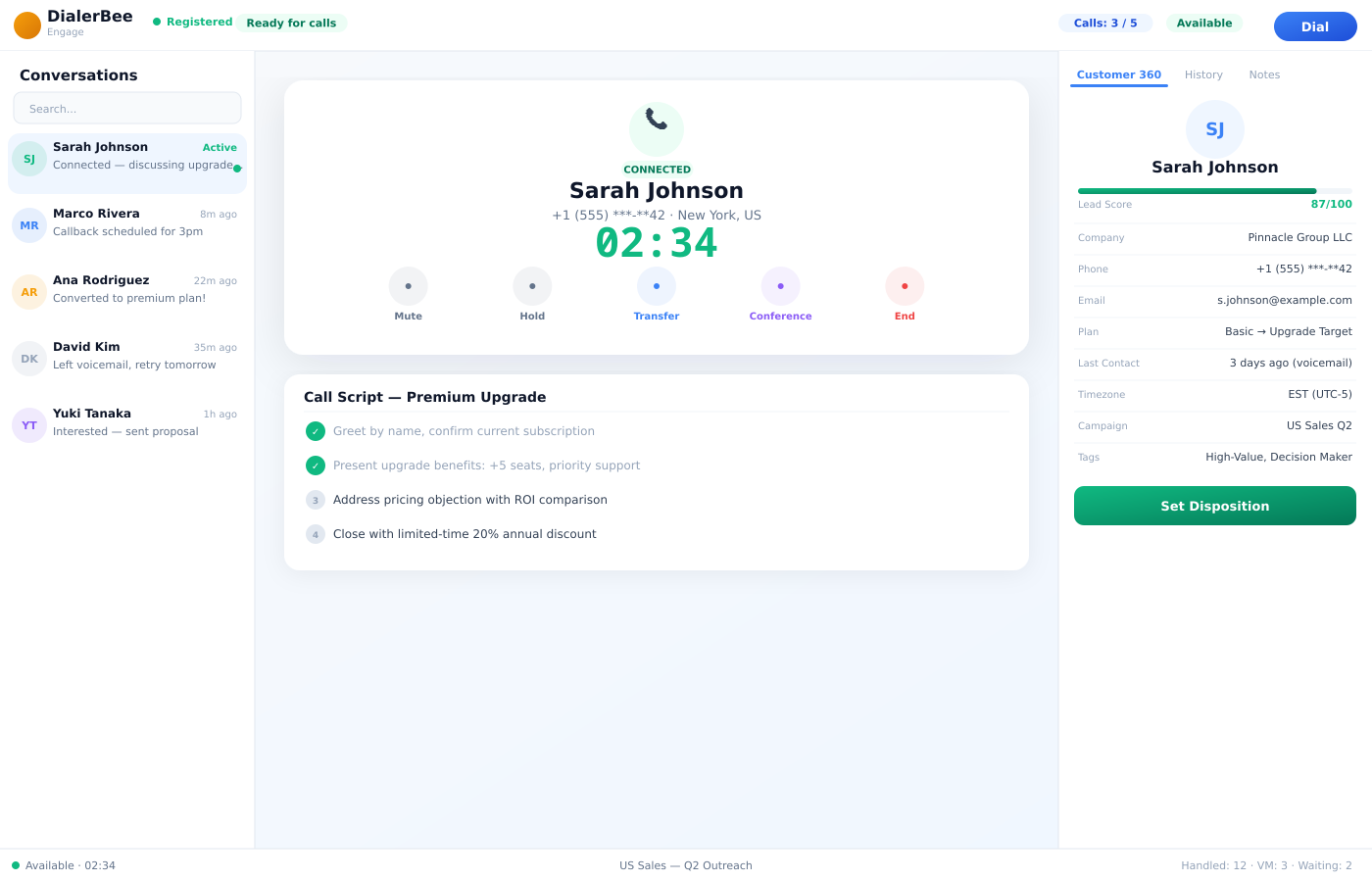
The wallboard is what the floor looks up at. It carries the live picture of the operation and a MOS card for audio quality on the calls in progress.
That MOS card settles an argument that otherwise costs a whole morning. When three agents say the line is bad, the wallboard tells you whether the audio really is degrading or whether the calls are simply hard.
- Live agent grid with state and time in state
- MOS card for live audio quality
- The supervisor request queue visible as it fills
- Filterable by campaign and queue
After the call
Coaching rules, timers, and the raw dispositions
Coaching rules raise a supervisor's attention against agent activity, so the agent who has been in wrap-up for eleven minutes surfaces on their own. Activity timers are the evidence behind it.
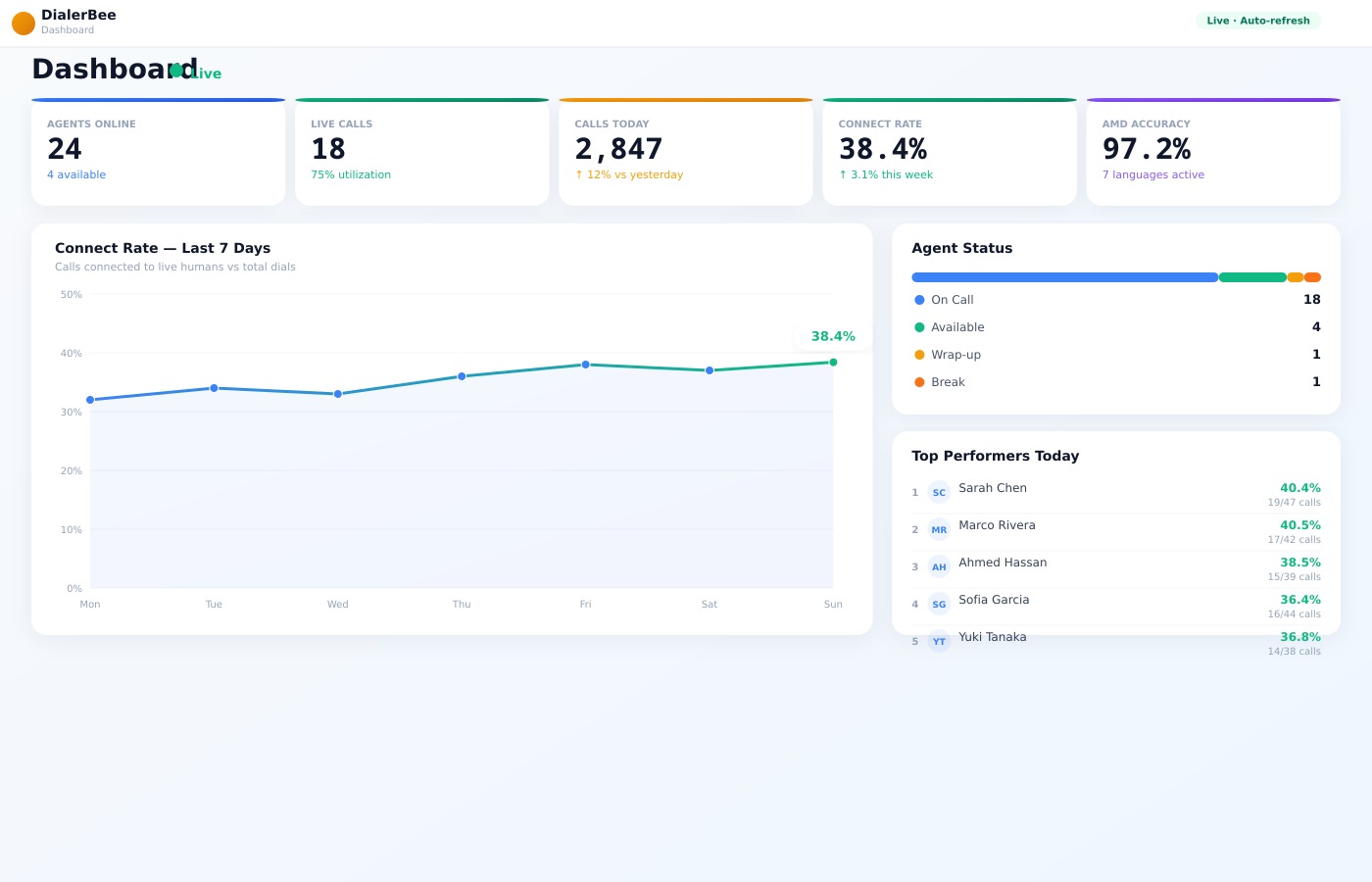
When someone asks you to prove a number, the disposition export is the answer. Agent activity and utilisation reports today, plus workforce management with shifts, time-off, adherence, forecasting and scheduling.
- Coaching rules against agent activity
- Activity timers per agent and per state
- Screen capture view alongside the call state
- Disposition exports for QA and for the client
How it compares
| A dashboard on a screen | DialerBee supervisor tools | |
|---|---|---|
| Hearing a live call | Listen to the recording tomorrow | Listen, whisper or barge on the call while it is happening |
| An agent who needs help | They raise a hand and hope | The supervisor request button puts them in a queue |
| Knowing why the floor is slow | Call counts | Agent states with time in state, per agent |
| An audio quality argument | Everyone guesses | A MOS card for live audio quality on the wallboard |
| Proving the numbers | A chart with no working | Disposition exports behind the figures |
| Ending a stale session | Ask the agent to log out | Force logout from the supervisor view |
Frequently asked questions
What are supervisor tools in DialerBee?+
They are the live view of the floor and the controls that go with it: an agent grid with states and timers, listen, whisper and barge on live calls, force logout, a screen capture view, the supervisor request queue, coaching rules, a wallboard with a MOS card, and disposition exports.
Can a supervisor listen to a call without the agent or the customer knowing?+
Yes. Listen joins the live call silently, so neither side hears the supervisor. It is the first rung of the ladder: from there a supervisor can escalate to whisper, where the agent hears them and the customer does not, or to barge, where both parties hear them.
How does whisper coaching work?+
Whisper opens audio to the agent only. The customer's side of the call is untouched and they hear nothing. It exists so a supervisor can fix an objection or a wrong statement while the call is still live rather than raising it in a review a week later.
What does the wallboard show?+
The live picture of the operation for the floor screen, with the agent grid, the states agents are in, and a MOS card for the audio quality of the calls in progress. The MOS card is there so that a complaint about a bad line becomes a measurement instead of an argument.
Can supervisors see an agent's screen?+
Yes, through the screen capture view. Capture is behind a consent toggle that the agent can see in their own desktop, so screen supervision is a stated setting rather than something the floor discovers by accident.
What are coaching rules?+
Rules that watch agent activity and raise a supervisor's attention when something is off. The point is that the supervisor is found by the problem rather than having to notice it, which matters most on a floor too large to watch card by card.
Can I do workforce scheduling from here?+
Agent activity and utilisation reports today, plus workforce management with shifts, time-off, adherence, forecasting and scheduling. You also have time in state per agent, activity timers and disposition exports, which is enough to see how a shift was actually spent.
How does an agent ask for a supervisor mid-call?+
The agent presses the supervisor request button on their desktop, and the request goes into the supervisor request queue. The supervisor picks it up from the same view they are already watching, then listens, whispers or barges as the call needs.
Watch a live floor and whisper on a call, on a demo tenant
A 30-minute walkthrough on a demo tenant, in English or Arabic.